

Modern Display Monitors
Choosing a monitor becomes much easier once you separate the specifications that genuinely affect everyday use from those that simply look impressive on a product page.
Screen size, resolution, panel technology, refresh rate, connectivity and viewing distance can all matter, but their importance depends on what you actually intend to do with the display.
The tables throughout this guide provide quick comparisons at a glance, while the surrounding explanations show what those differences can mean in practical use.
LED and LCD Monitors
The terms LED and LCD are sometimes presented as though they describe completely different types of modern monitors. In most cases, however, an LED monitor is actually an LCD panel that uses LEDs to provide its backlighting.
Older LCD displays often used fluorescent backlights. LED backlighting made it possible to build thinner, more energy-efficient displays and is now common across modern LCD monitors.
IPS, VA and TN Panels
Within the LCD family, IPS, VA and TN describe different panel technologies. Each has characteristics that can make it more suitable for particular uses.
- IPS: commonly chosen for strong viewing angles and consistent color reproduction.
- VA: often provides stronger native contrast and deeper blacks than typical IPS or TN panels.
- TN: traditionally known for fast response characteristics and is still found in some performance-focused displays.
IPS, VA and TN at a Glance
| Characteristic | IPS | VA | TN |
|---|---|---|---|
| Viewing Angles | Generally wide | Usually good | Usually narrower |
| Native Contrast | Moderate | Often stronger | Usually lower |
| Motion Performance | Varies by model | Varies by model | Can be very fast |
| Common Uses | General use, creative work, gaming | Entertainment, mixed use, gaming | Performance-focused gaming, general use |
These are broad tendencies rather than guarantees. Individual monitor performance can vary considerably, so the complete specifications and independent performance of a particular model still matter.
If color consistency and viewing angles are important to you, an IPS monitor is one option worth considering.
OLED Desktop Monitor and Hybrid Mini LED Monitor
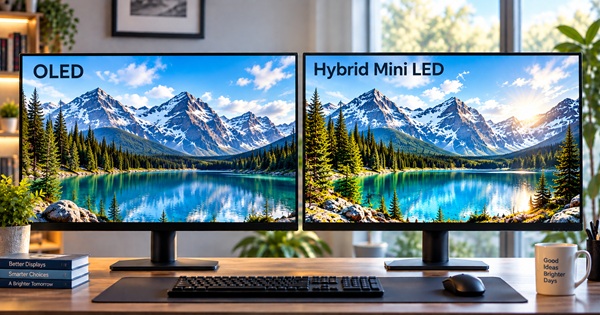
OLED and Mini LED displays take different approaches to improving picture quality.
OLED pixels produce their own light and can switch off individually. This allows very deep blacks, excellent contrast and fast pixel response. Depending on the model and intended use, buyers may also want to consider brightness, price, text rendering and the long-term effect of repeatedly displaying static content.
Mini LED is still an LCD technology. Instead of using a relatively small number of larger backlight zones, Mini LED displays use many smaller LEDs that can provide more precise local dimming. The quality of the result depends heavily on how well the monitor controls those zones.
OLED, Mini LED and Standard LED LCD at a Glance
| Display Type | How It Produces Light | Typical Strength | Worth Considering |
|---|---|---|---|
| OLED | Each pixel produces its own light | Excellent black levels and fast response | Price, brightness and static-content use |
| Mini LED LCD | LCD panel with many small LED backlight zones | High brightness and improved local dimming | Zone control and blooming performance |
| Standard LED LCD | LCD panel with LED backlighting | Wide selection and broad price range | Panel type, contrast and backlight quality |
Monitor Resolution and Screen Size
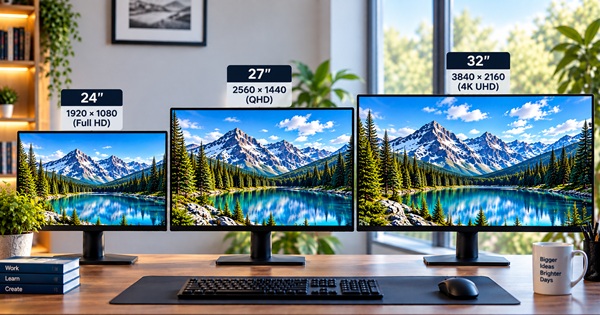
Resolution tells you how many pixels a display contains, while screen size tells you how large the physical panel is. The two work together.
A higher resolution can provide more desktop space and finer image detail, but it also places greater demands on computer hardware and may not be necessary for every screen size or use.
Common choices include Full HD monitors, Quad HD monitors and 4K Ultra HD monitors.
Resolution at a Glance
| Resolution | Pixel Dimensions | Common Reasons to Choose It |
|---|---|---|
| Full HD | 1920 × 1080 | General computing, smaller screens, modest hardware requirements |
| Quad HD | 2560 × 1440 | More desktop space, gaming, larger desktop monitors |
| 4K Ultra HD | 3840 × 2160 | High detail, creative work, large screens and increased workspace |
Higher resolution is not automatically the better choice for everyone. Viewing distance, screen size, software scaling and the performance of the computer driving the display should all be considered together.
Curved Monitors
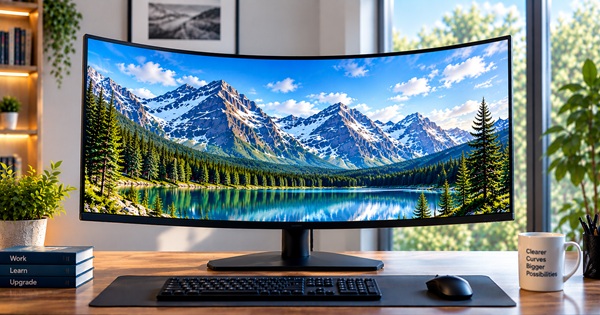
A curved monitor bends the screen toward the viewer rather than presenting a completely flat surface. The effect becomes more noticeable as screens become wider and as the curve becomes tighter.
Curvature is commonly expressed with values such as 1800R, 1500R or 1000R. A smaller number represents a tighter curve.
Some people enjoy the way a curved display surrounds their field of view, particularly on wide monitors. Others prefer the simple geometry of a flat display. Neither design is automatically superior for every user.
Curved or Flat?
| Consideration | Curved Monitor | Flat Monitor |
|---|---|---|
| Wide Screens | Can make far edges feel more naturally oriented toward the viewer | Familiar and straightforward |
| Desk Placement | Best viewed from a reasonably centered position | Flexible for many seating positions |
| Multiple Displays | Can work well but requires thoughtful positioning | Simple to align |
| Personal Preference | Some users enjoy the surrounding effect | Some users prefer a completely flat image plane |
If the format appeals to you, a curved monitor can be worth exploring.
Gaming Monitors
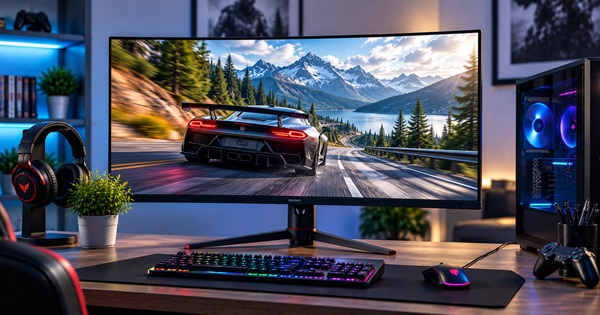
Gaming monitors often emphasize refresh rate, pixel response time and variable refresh rate technology. These specifications describe different parts of how motion is displayed and should not be treated as though they mean the same thing.
Refresh rate describes how many times the monitor can refresh the image each second. A higher refresh rate can make motion appear smoother when the computer is producing enough frames to take advantage of it.
Pixel response time describes how quickly pixels transition from one state to another. Slow transitions can contribute to visible smearing or ghosting.
Variable refresh rate allows the monitor to adjust its refresh timing to better match the frame output of the computer. Technologies and standards encountered in this area include AMD FreeSync, VESA Adaptive-Sync and NVIDIA G-SYNC or G-SYNC Compatible displays.
Gaming Features at a Glance
| Feature | What It Describes | Why It Matters |
|---|---|---|
| Refresh Rate | How often the display can refresh each second | Can improve motion smoothness |
| Pixel Response | How quickly pixels change | Can affect ghosting and motion clarity |
| Variable Refresh Rate | Coordination between display refresh and computer frame output | Can reduce tearing and uneven motion |
| Resolution | Number of pixels displayed | Affects detail and GPU workload |
There is no single refresh rate that every gamer needs. A 100Hz or higher monitor can provide noticeably smoother motion than a conventional 60Hz display, while competitive players with sufficiently powerful hardware may consider 240Hz monitors and other high-refresh options.
Ultra-Wide Monitors
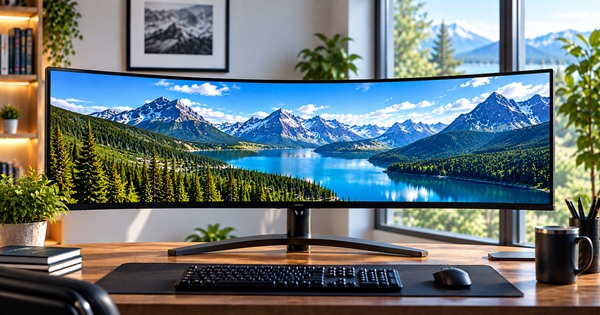
Ultra-wide monitors provide additional horizontal screen space and commonly use a 21:9 aspect ratio rather than the familiar 16:9 format.
The extra width can be useful for placing multiple windows side by side, working on timelines, viewing large spreadsheets or enjoying games that properly support the wider format.
Not every game, video or application makes full use of an ultra-wide screen, and the physical width of the monitor also requires more desk space.
Ultra-Wide and Standard Displays at a Glance
| Consideration | Ultra-Wide | Standard Widescreen |
|---|---|---|
| Common Aspect Ratio | 21:9 | 16:9 |
| Horizontal Workspace | More room for side-by-side content | Conventional desktop space |
| Games and Video | Excellent when properly supported | Very broadly supported |
| Desk Space | Requires more width | Usually easier to accommodate |
An ultra-wide monitor does not automatically make someone more productive. Its value depends on whether the additional horizontal workspace fits the way you actually use your computer.
HDR Monitors
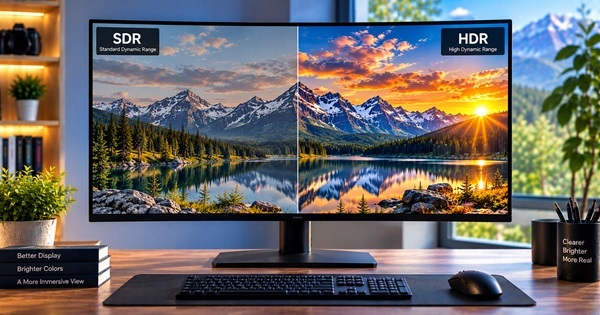
High Dynamic Range, or HDR, is intended to reproduce a wider range between dark and bright portions of an image while supporting richer color information.
Seeing HDR10 support on a specification sheet does not by itself guarantee impressive HDR performance. Contrast, brightness, local dimming, color capability and the panel technology all influence the final result.
What to Look for in an HDR Monitor
- Strong contrast
- Sufficient peak brightness
- Effective local dimming or self-emissive pixels
- Good color performance
- Meaningful HDR certification where available
HDR Specifications at a Glance
| Specification | What It Can Tell You | What It Cannot Tell You Alone |
|---|---|---|
| HDR10 Support | The monitor can accept HDR10 content | How impressive the HDR picture will look |
| Peak Brightness | How bright highlights may become | Overall contrast quality |
| Color Gamut | The range of colors a display can reproduce | Color accuracy by itself |
| Local Dimming | Backlight areas can be controlled separately | How well those zones are managed |
| OLED | Pixels can control their own light | Whether a particular model suits every environment or use |
If HDR performance is important to you, look beyond the logo and compare the complete capabilities of the HDR monitor.
Using a TV or Larger Display as a Monitor
A television or other large display can sometimes work very well as a computer monitor, particularly when it will be viewed from farther away. Large screens can provide an impressive workspace for entertainment, presentations and certain desktop arrangements.
The bigger screen does not eliminate the need to consider resolution. At ordinary desktop viewing distances, text clarity and pixel density become especially important.
Input behavior, available ports, refresh rate, desk depth and physical viewing distance should also be considered before placing a very large display directly in front of a computer user.
Choosing a Larger Screen
A 32-inch monitor can provide considerable desktop space without moving into true television-sized territory. A 50-inch TV may make more sense when the viewing distance and room arrangement are designed around a much larger screen.
Large Screens at a Glance
| Consideration | Why It Matters |
|---|---|
| Viewing Distance | A screen that feels comfortable across a room may feel overwhelming on a shallow desk |
| Resolution | Higher pixel density can improve text and fine-detail clarity |
| Desk or Room Space | Large displays require sufficient physical distance and support |
| Connectivity | The computer and display need compatible ports and capabilities |
| Primary Use | Desktop work, gaming and entertainment can place different demands on the display |
Connectivity and Everyday Features Matter Too
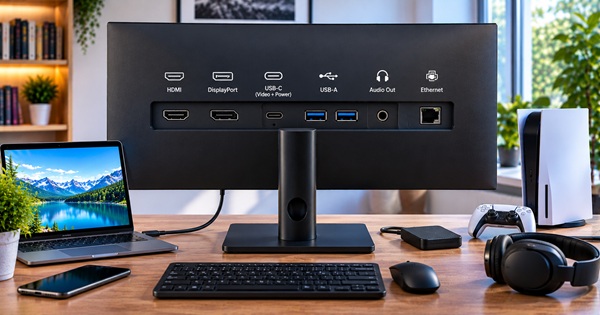
Picture specifications receive most of the attention, but everyday usability can depend just as much on the ports and physical design of the monitor.
HDMI and DisplayPort are common video connections. USB-C can be particularly useful with compatible laptops because some monitors can carry video, data and power through a single cable.
Stand adjustment also deserves attention. Height, tilt, swivel and pivot adjustments can make a monitor considerably easier to position comfortably.
People who move between locations may prefer a portable monitor, while a more permanent setup can be chosen around the needs of business and home monitors.
Which Video Display Monitor Fits Your Needs?
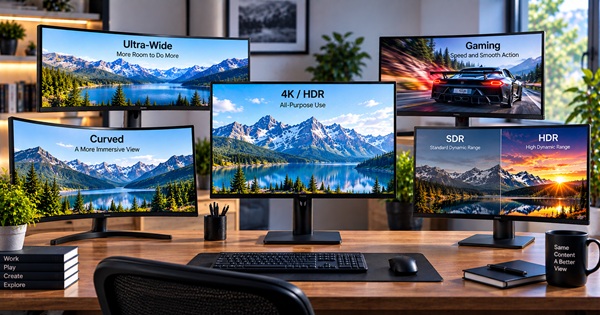
The best monitor is not necessarily the one with the longest specification sheet. It is the one whose screen size, resolution, panel technology, refresh behavior, connections and physical design work together for the way you intend to use it.
A general office computer may benefit more from comfortable text clarity and useful connectivity than an extreme refresh rate. A gamer may place more value on motion performance and variable refresh rate. Creative work may put greater emphasis on resolution, color performance and viewing consistency.
The computer connected to the display matters as well. Even a compact system such as a DDR4 or DDR5 mini PC can support an excellent monitor setup when its graphics output and connections match the display you choose.
Start with what you actually need to see and do. Once that is clear, the specifications become much easier to understand and compare.
Related Monitor Reading
You may also enjoy our guide to Desktop Monitor Displays for Visual Viewing Satisfaction.


